---
title: How to Integrate with Magento
description: Integrating Hello Clever with Magento
---
[Skip to content](https://support.helloclever.co/merchant-knowledge-base/magento#main-content)
[Contact Merchant Support](https://support.helloclever.co/merchant-knowledge-base/kb-tickets/new?hsLang=en)

- [Merchant Support](https://support.helloclever.co/merchant-knowledge-base)
- [Go to Consumer Support](https://support.helloclever.co/consumer-knowledge-base/faqs)
- [Contact Merchant Support](https://support.helloclever.co/merchant-knowledge-base/kb-tickets/new)
Open main navigation
Close main navigation
- [Merchant Support](https://support.helloclever.co/merchant-knowledge-base)
- [Go to Consumer Support](https://support.helloclever.co/consumer-knowledge-base/faqs)
- [Contact Merchant Support](https://support.helloclever.co/merchant-knowledge-base/kb-tickets/new)
- [Contact Merchant Support](https://support.helloclever.co/merchant-knowledge-base/kb-tickets/new)
How can we help you?
- There are no suggestions because the search field is empty.
1. [Merchant Support](https://support.helloclever.co/merchant-knowledge-base?hsLang=en)
2. [Integrations & Developer Resources](https://support.helloclever.co/merchant-knowledge-base/integrations-developer-resources?hsLang=en)
# How to Integrate with Magento
## This guide explains how to add and configure the Hello Clever payment gateway for your Magento 2 store. Follow the steps below to ensure a seamless setup for your customers.
### Getting Started
#### Requirements
INFO
Hello Clever is currently available for Magento merchants with store addresses in **Australia**.
### Magento Version
The Hello Clever extension for Magento 2 is compatible with **version 2.20 or greater**.
### Store Currency
The plugin requires a dedicated website scope for each market region (country) with the corresponding base currency set in Magento Admin. To set the base currency:
1. Navigate to **Stores \> Configuration \> Currency Setup**.
2. Set the currency to **AUD (Australian Dollars)**.
Note: Hello Clever only supports AUD at this time.
### Installation Guide
#### Step 1: Download the Extension
1. Head over to the [Magento Extension Download](https://helloclever.co/plugins/magento/VERSION/1.0.3/app.zip) page.
2. Log in with your Magento credentials and proceed to checkout to add the extension to your store.
3. Once your order is placed, you will be redirected to the installation page with instructions.
#### Step 2: Install the Extension
There are two methods to install the Hello Clever extension:
#### Method 1: File Transfer via FTP
1. Use an FTP client (e.g., FileZilla) to upload the module to the directory `app/code/Clever` on your Magento server.
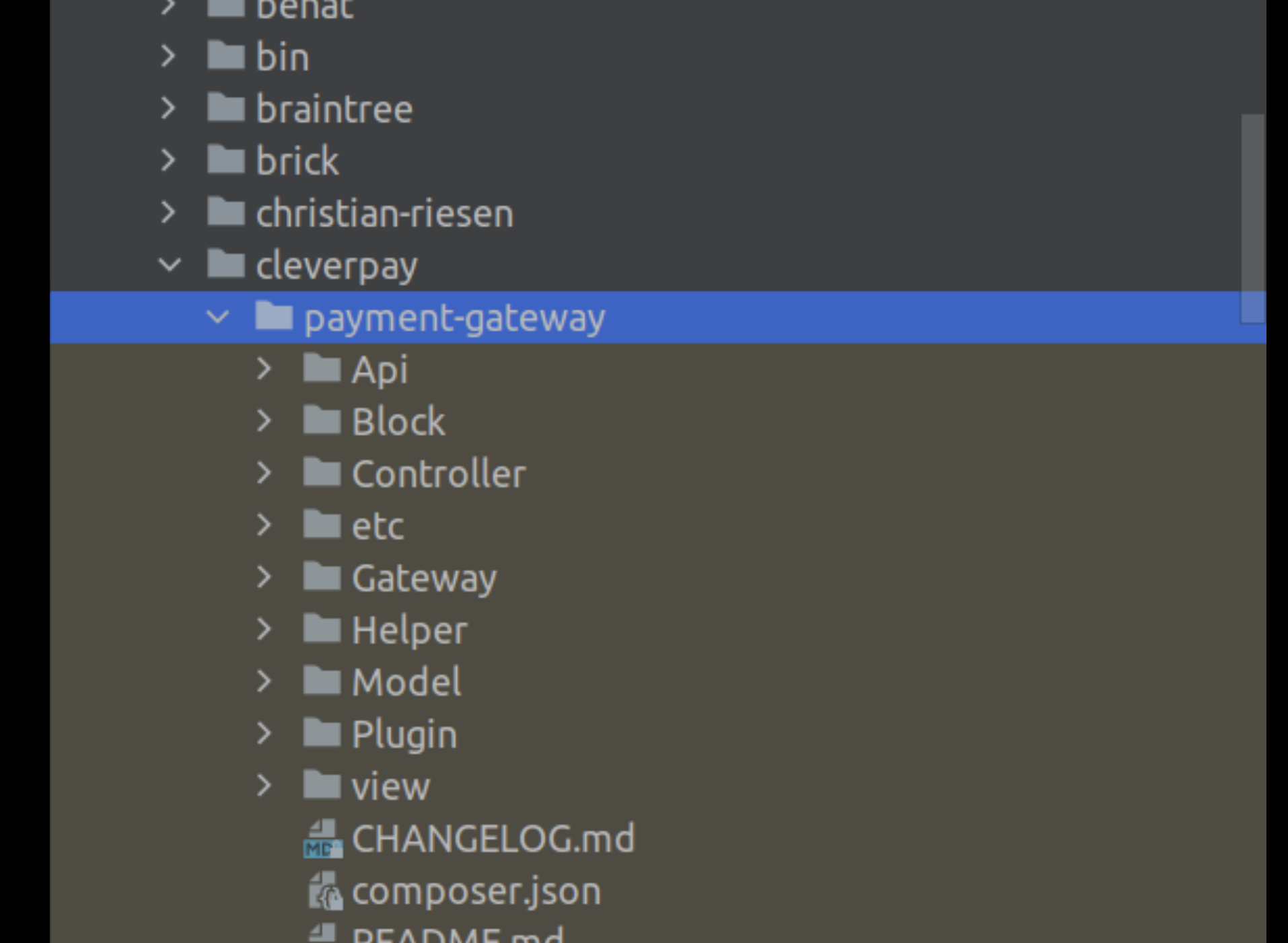
1. Ensure the folder structure matches the required setup.
### Method 2: Command Line Installation
The second method will require you to compress the extension into `.zip` or `.tar.gz` format, then copy `app/code/Clever` directory and execute the following command in your Command Line or Terminal.
Please follow the video below to see the details.
Example: The directory extension is `app/code/Clever/PaymentGateway`
```
scp :
```
Then log into your ssh server, go to Clever directory and execute the following command to decompress the module: `unzip <.zip compressed extension>` Or `tar -xzvf <.tar.gz compressed extension>`.
Now go to your Magento root directory, say it's named magento2, and execute the following commands:
```
sudo php bin/magento setup:upgradesudo php bin/magento setup:di:compilesudo php bin/magento setup:static-content:deploy
```
#### Step 3: Flush the Magento System Cache
1. Log in to **Magento Admin**.
2. Navigate to **System \> Cache Management**.
3. Click **Flush Cache Storage**.
#### Configure the Extension
### Basic Settings
1. Log in to **Magento Admin** and navigate to:
**Stores \> Configuration \> Sales \> Payment Methods \> Hello Clever**.
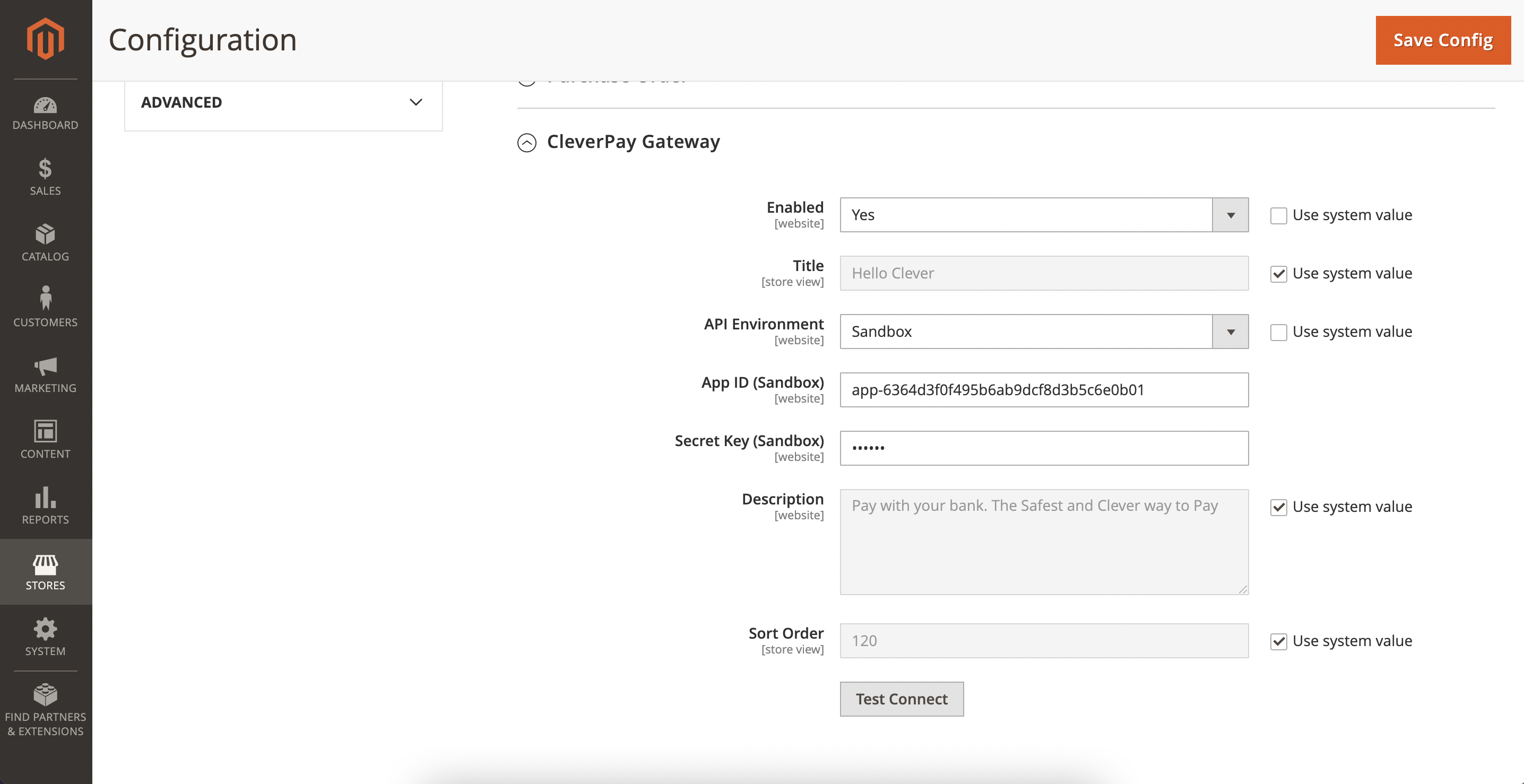
2. Enable the plugin by setting **Enabled** to **Yes**.
3. Configure the following settings:
- **API Environment**: Choose `Sandbox` for testing or `Production` for live transactions.
- **App ID** and **Secret Key**: Obtain these credentials from your Hello Clever Merchant Dashboard.
- **Description**: Customise the payment method description displayed to customers.
4. Test the connection by clicking **Test Connection** to ensure proper setup.
5. Click **Save Config** to finalise the configuration.
#### Updating the Extension
### How to Update the Hello Clever Extension
The process of updating the Hello Clever extension involves completely removing the old files and installing the new version.
1. **Remove Old Files**:
- Delete all files located in `root/app/code/Clever`.
2. **Install the Latest Version**:
- Follow the installation steps outlined above to upload and configure the updated extension.
3. **Flush Cache**:
- Clear the Magento cache by navigating to **System \> Cache Management** and clicking **Flush Cache Storage**.
For more information: https://docs.helloclever.co/category/magento-2
- [Getting Started](https://support.helloclever.co/merchant-knowledge-base/getting-started?hsLang=en)
- [Integrations & Developer Resources](https://support.helloclever.co/merchant-knowledge-base/integrations-developer-resources?hsLang=en)
- [Merchant Dashboard](https://support.helloclever.co/merchant-knowledge-base/merchant-dashboard?hsLang=en#main-content)
- [General](https://support.helloclever.co/merchant-knowledge-base/merchant-dashboard?hsLang=en#general)
- [Data & Analytics](https://support.helloclever.co/merchant-knowledge-base/merchant-dashboard?hsLang=en#data-analytics)
- [Refunds & Disputes](https://support.helloclever.co/merchant-knowledge-base/merchant-dashboard?hsLang=en#refunds-disputes)
- [Payment Links](https://support.helloclever.co/merchant-knowledge-base/merchant-dashboard?hsLang=en#payment-links)
- [Loyalty & Campaigns](https://support.helloclever.co/merchant-knowledge-base/loyalty-campaigns?hsLang=en#main-content)
- [Instant Cashback Campaigns](https://support.helloclever.co/merchant-knowledge-base/loyalty-campaigns?hsLang=en#instant-cashback-campaigns)
- [Milestone Campaigns](https://support.helloclever.co/merchant-knowledge-base/loyalty-campaigns?hsLang=en#milestone-campaigns)
- [Clever AI](https://support.helloclever.co/merchant-knowledge-base/clever-ai?hsLang=en)
- [Marketing & Resources](https://support.helloclever.co/merchant-knowledge-base/marketing-resources?hsLang=en)
- [Settlements](https://support.helloclever.co/merchant-knowledge-base/settlements?hsLang=en)
- [Hello Clever Bookings](https://support.helloclever.co/merchant-knowledge-base/hello-clever-bookings?hsLang=en#main-content)
- [Dashboard](https://support.helloclever.co/merchant-knowledge-base/hello-clever-bookings?hsLang=en#dashboard)
- [Business Profile](https://support.helloclever.co/merchant-knowledge-base/hello-clever-bookings?hsLang=en#business-profile)
- [Customer](https://support.helloclever.co/merchant-knowledge-base/hello-clever-bookings?hsLang=en#customer)
- [FAQs](https://support.helloclever.co/merchant-knowledge-base/faqs?hsLang=en#main-content)
- [General Info](https://support.helloclever.co/merchant-knowledge-base/faqs?hsLang=en#general-info)
- [Payments](https://support.helloclever.co/merchant-knowledge-base/faqs?hsLang=en#payments)
- [Merchant Support](https://support.helloclever.co/merchant-knowledge-base)
- [Go to Consumer Support](https://support.helloclever.co/consumer-knowledge-base/faqs)
- [Contact Merchant Support](https://support.helloclever.co/merchant-knowledge-base/kb-tickets/new)
[](https://helloclever.co/)
```json
{
"@context" : "https://schema.org",
"@type" : "VideoObject",
"contentUrl" : "https://stream.mux.com/qBQ8AJGq9KY006usJAdpo4tqZcIzD2J01mt8WnvFK3nBs/capped-1080p.mp4",
"dateModified" : "2025-09-04T04:06:57.184Z",
"duration" : "PT6M45S",
"height" : 1414,
"name" : "2-aa3dc5d1ec062c7043c76eada84c476d",
"thumbnailUrl" : "https://7853100.fs1.hubspotusercontent-na1.net/hubfs/7853100/2-aa3dc5d1ec062c7043c76eada84c476d.mp4/medium.jpg",
"uploadDate" : "2025-09-04T04:06:53.279Z",
"width" : 2560
}
```